








 Annihilation
Navi Marks
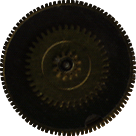
NetNavi Marks, also occasionally known as Navi Symbols, Navi Emblems, or here formerly as Navi Icons. These are the circular insignias that symbolize the navis and operators from the Mega Man Battle Network series. Most are about 60x60 and made like sprites with a limited palette by Raijin (Drillman) unless noted otherwise. The official designs are re-created quite faithfully with respect to colours and shape, but I tend to take artistic license with shading and texture.
If you would like to use any of these for whatever reason (forum avatars, component to another graphic, etc.) please ask the creator's permission first and give credit where appliccable. They're free to use as references though. You won't find a gallery of Navi Marks this complete anywhere else.
Official Navi Marks - These are all closely based on navi marks of characters featured in the Battle Network games.
 Megaman |
 Roll |
 Gutsman |
 Glyde |
 Protoman |
 Numberman |
 Colonel |
 Bass |
 Megaman DS |
 Fireman |
 Stoneman |
 Colourman |
 Elecman |
 Bombman |
 Magicman |
 Iceman |
 Woodman |
 Skullman |
 Sharkman |
 Pharaohman |
 Shadowman |
 Airman |
 Quickman |
 Cutman |
 Knightman |
 Magnetman |
 Freezeman |
 Toadman |
 Gateman |
 Thunderman |
 Snakeman |
 Heatman |
 Napalmman |
 Planetman |
 Flashman |
 Beastman |
 Bubbleman |
 Desertman |
 Plantman |
 Flameman |
 Drillman |
 Punk |
 Metalman |
 Kingman |
 Mistman |
 Bowlman |
 Darkman |
 Yamatoman |
 Serenade |
 Aquaman |
 Topman |
 Sparkman |
 Windman |
 Videoman |
 Burnerman |
 Searchman |
 Junkman |
 Coldman |
 Kendoman |
 Shademan |
 Laserman |
 Meddy |
 Gyroman |
 Tomahawkman |
 Blizzardman |
 Cloudman |
 Cosmoman |
 Footman |
 Swallowman |
 Slashman |
 Killerman |
 Chargeman |
 Tenguman |
 Groundman |
 Dustman |
 Blastman |
 Diveman |
 Circusman |
 Judgeman |
 Elementman |
 Needleman |
 Brightman |
 Swordman |
 Gravityman |
 Starman |
 Zero |
 Normal Navi |
 Heel Navi |
 Girl Navi |
 Cookman |
 Turboman |
 Ring |
 Hatman |
 Jammingman |
 Cache |
 Rideman |
 Reverse Rideman |
 Clockman |
Non-Navi Marks -For the most part these are official symbols from the games adapted into the navi mark format. These are less authentic than the ones above, but they do have accurate official elements to them.
 Network SciLab |
 Official NetBattlers |
 Red Sun |
 Blue Moon |
 WWW World Three |
 Netmafia Gospel |
 Nebula Syndicate |
 Dream Virus (EXEWS) |
 Gospel (EXEWS) |
 Prototype Alpha |
 Arbiter Duo |
 Nebula Grey |
 Cybeast Gregar |
 Cybeast Falzar |
 Forte |
 BassGS |
 Iris |
Team Navi Marks -These original works from team members and associates represent characters, organizations, and entities that exist in our own personal canon.
 Viral Infection |
 Life Virus |
 Net Guardians |
 Acid Hackers |
 GAMMA |
 Fate.exe By Havoc |
 Doctor Gate |
 Overdrive |
 Burstgirl |
 Queen Majesty |
 Magister |
 Executioner |
 Archer |
 Dragoon |
 Jester |
 Vengeance |
 Templar By Nijubu |
 Wykydtron By Nijubu |
 Bitman |
 Infernoman |
 Gekkoman |
 Poseidonman |
 Gaia |
 Spider By Vulcan |
 IceChan By Crys |
 Naomi.exe By Midoriman |
 Doppelganger By Novaman |
 S6 Bitman (design by Gauntlet) |
 S6 Sharkman (design by Gauntlet) |
 S6 Waveman (design by Gauntlet) |
 S6 Oilman (design by Gauntlet) |
 S6 Blademan (design by Gauntlet) |
 S6 Torchman (design by Gauntlet) |
 General Cutman (design by Gauntlet) |
 Tireman |
 KRWP Networks By KRWP |
 Mercury X Overdrive |
 Venus X Burstgirl |
 Terra X Gaia |
 Mars X Napalmman |
 Jupiter X Megaman |
 Saturn X Gate |
 Uranus X Magister |
 Neptune X Waveman |
 Pluto X Flamechick |
 Dark Moon |
 Sun God |
Other Symbols -Not associated with the EXE series at all, but they're symbols and they're circular, so it's not much of a stretch. Anything goes, basically.
 Reboot |
 Laughing Man |
 Green Lantern |
 Ricochet Disk |
 XANA |
 Yin- Yang |
 Radioactive |
 Search Snake |
 Mighty No.1 Pyrogen |
 Mighty No.2 Cryosphere |
 Mighty No.3 Dynatron |
 Mighty No.4 Seismic |
 Mighty No.5 Battalion |
 Mighty No.6 Aviator |
 Mighty No.7 Brandish |
 Mighty No.8 Countershade |
 Mighty No.9 Beck |
 Call |
 Trinity |
 Raychel |
Fan Submissions -Navi Marks made by you. Submit your designs to be displayed here. To start, check out the template below.
 Jewel.exe By Megaman 7 |
 Slifer.exe By Slifer.exe |
 Pyo.exe By PlaguedOne |
 Tree.exe By Tree.exe |
 Blaze Quest By Blazequest |
 Lockez By Sasuke.exe V2 |
 Raid.exe By Valiant |
 Azureman.exe By Azureman.exe |
 Monkeyman.exe By Valiant |
 Analyze.exe By Analyze.exe |
 Neonman.exe By NeonMan.exe |
 Reaperman.exe By King Reaper |
 Zoar.exe By Erik and Gary |
 Hardman.exe By Hadrian and Gary |
 Geminiman.exe By Quickie and Gary |
 Dive Chick By Spark Mandrill |
